
Obtaining API Credentials
In order to obtain an API credential, the API Integration must be enabled on your eVault account.
- For Clients: Please contact your Customer Success Manager to have the API Integration enabled on your account
- For 3rd Party Vendors: Please contact nCino at [email protected] to discuss getting your vendor account setup
In order to make an API call, you will need the three following pieces of information:
- Client ID
- Client Secret
- Auth code
If you have multiple Orgs, you will receive multiple Auth Codes. Each Org has its own code. Make sure that you are using the correct code for the correct Org.
Provisioning an API Credential
Once the API feature has been enabled for the account, API credentials will need to be provisioned in order to access the API. This can be done from within the nCino eVault Company Settings page.
On the Company Settings page, locate the API Integrations tab. This tab will only be displayed for users with the Manage API Integrations permission enabled. Clicking the tab will navigate to the API Integrations page.
Client ID and Client Secret
On the API Integrations page you will see a dropdown with all of your integrations. After selecting one, you will be able to see your Client ID. You can copy the value from here.
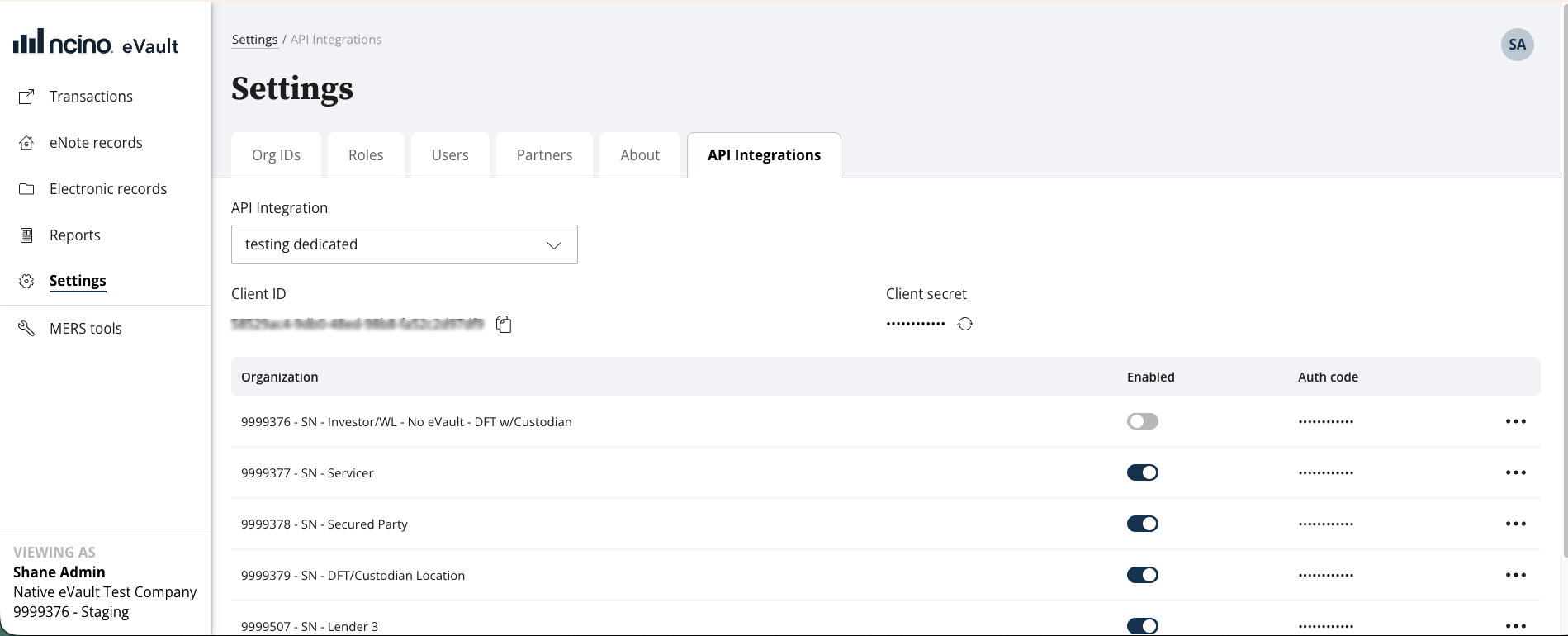
If you lost your Client secret or haven't obtained it yet, you can click the reset secret button.
Warning: If you reset your secret, all current integrations using the old secret will no longer work.
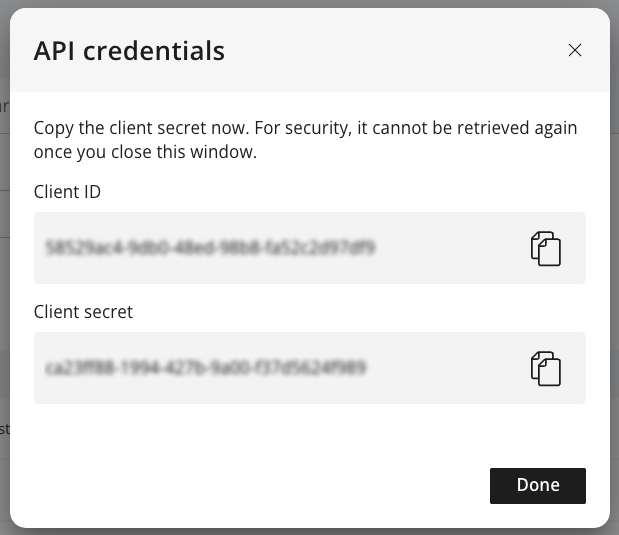
After a confirmation window, you will be presented with the new Client Secret.
Auth Codes
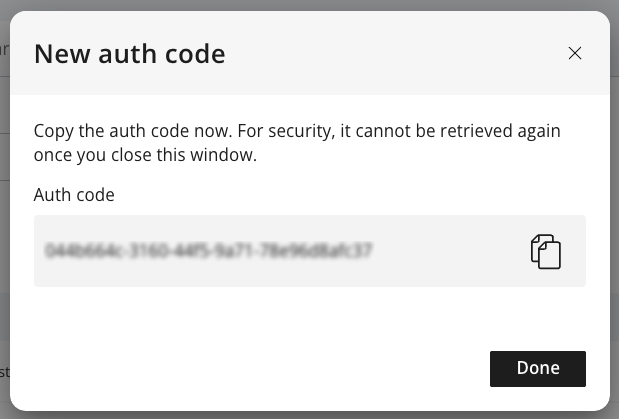
To enable the API Integration to make API calls for a specific Org, ensure that the "enabled" toggle is turned on. Once you do this for the first time, you will be presented with the auth code that will be required in the body of the auth token request. If you lost the auth code or need to reset it, you can do that in the 3-dot menu.
Warning: If you reset the auth code, all current integrations using the old auth code will no longer work.
After a confirmation window, you will be presented with the new auth code.
Configuring Permissions
Each API Integration will be given certain permissions, but just because the API Integration has been given permission to make specific API calls doesn't mean that the Org has allowed it. To grant the API Integration permission to make the specific calls on behalf of a certain Org, open the permissions modal from the 3-dot menu.
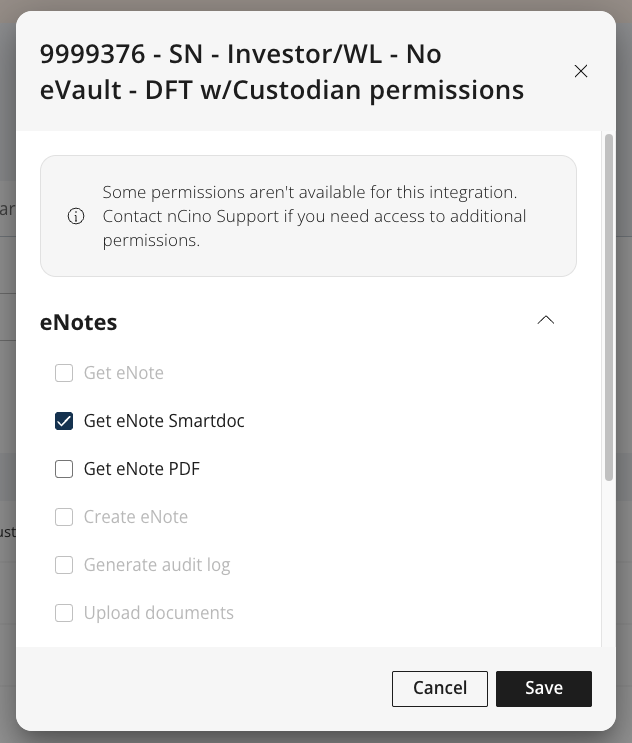
From here you can enable or disable specific endpoints. This allows you to restrict the integration from having full access and only letting it do the specific things that you deem necessary. Check the box to enable the individual endpoints that you want to provide access to.
Updated about 2 months ago